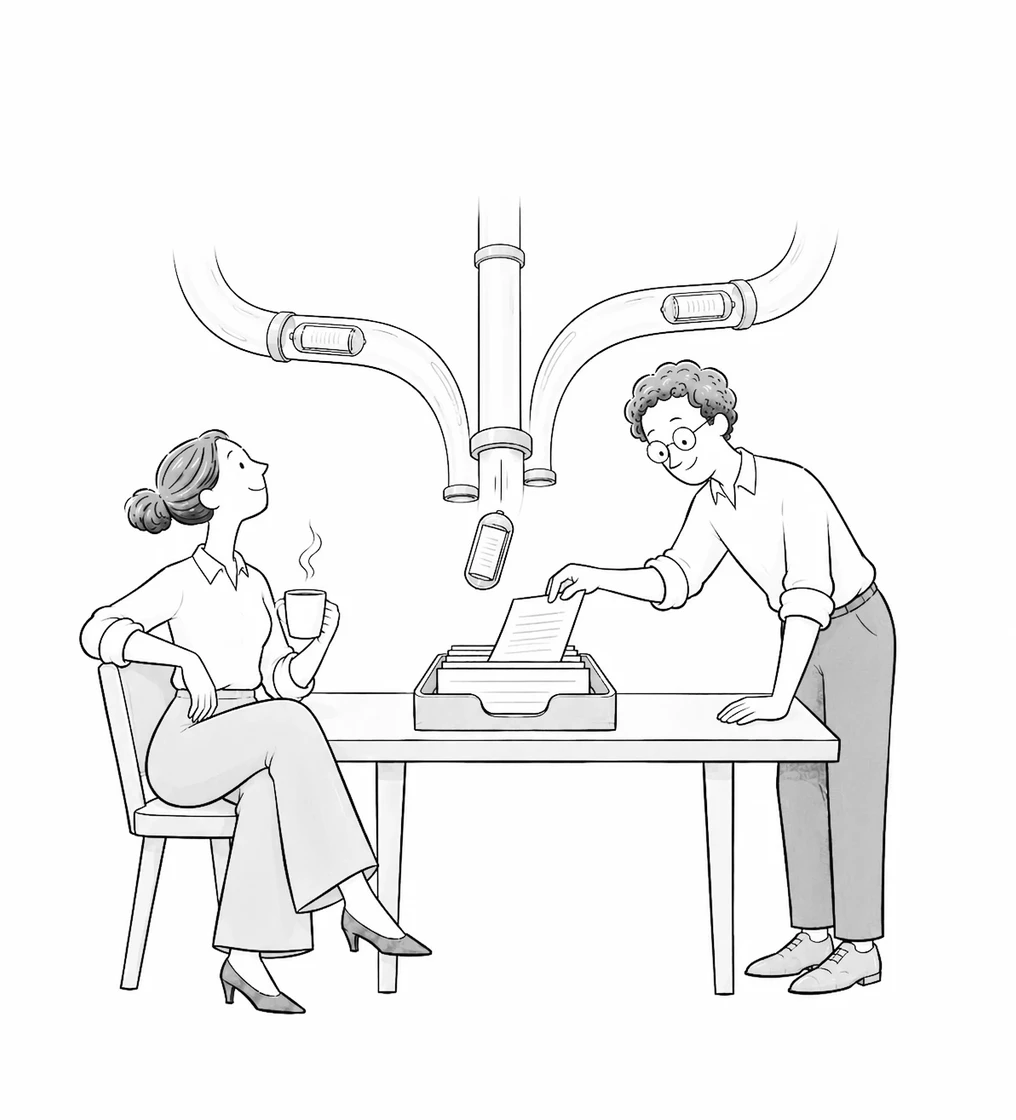
Email and files, straight into the matter
Bring files from Google Drive or OneDrive into your matter, and file selected emails and attachments from Gmail or Outlook.
What pilot participants reported
Reported the same or better quality
Felt more confident preparing a matter
Estimated weekly time saved, reported in pilot interviews
Review new material before it joins the matter
Review new emails and files from connected sources before adding them to the matter.
Intake from your inbox
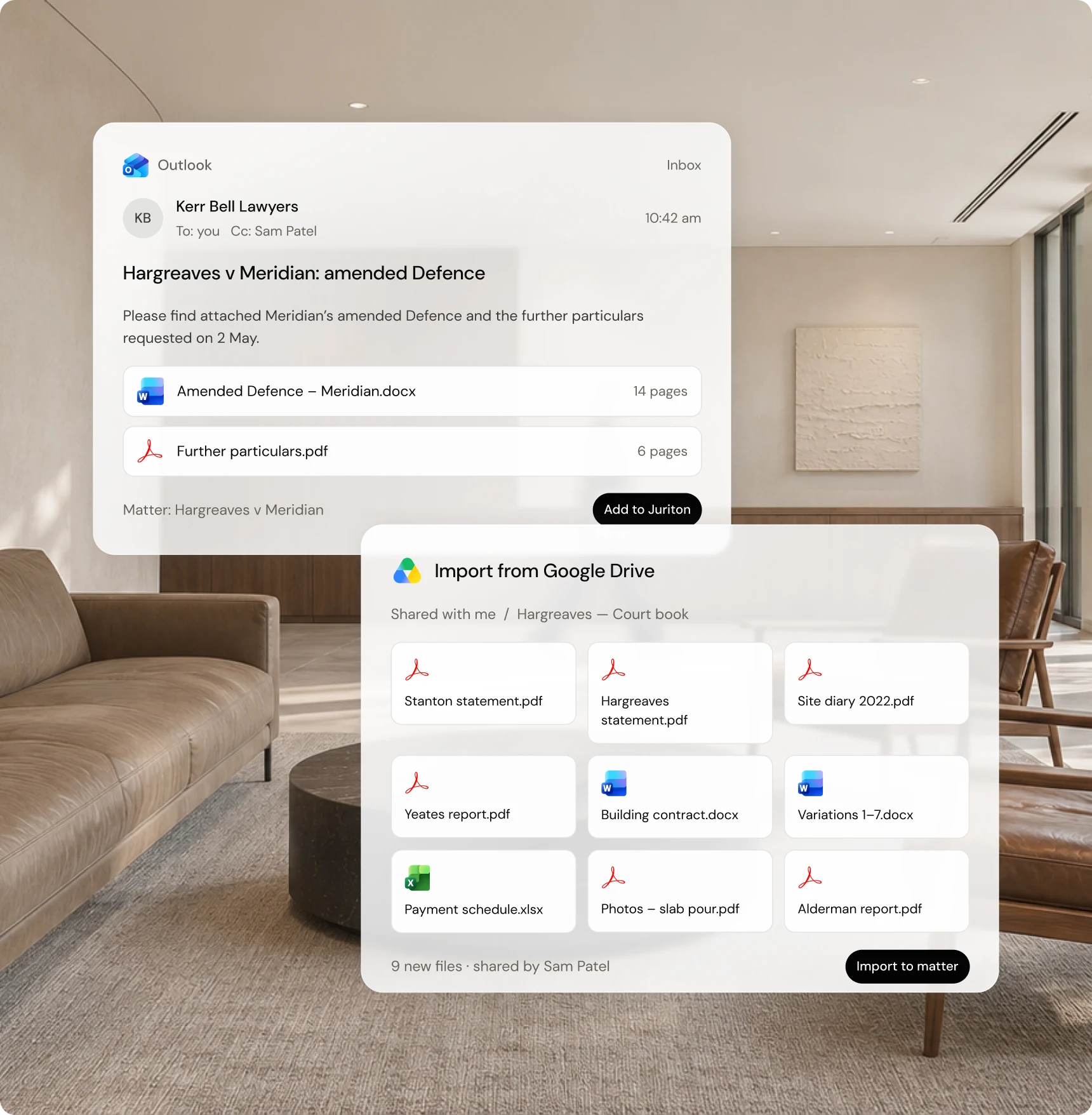
File selected Gmail or Outlook emails and their attachments to the matter.
Keep the matter organised
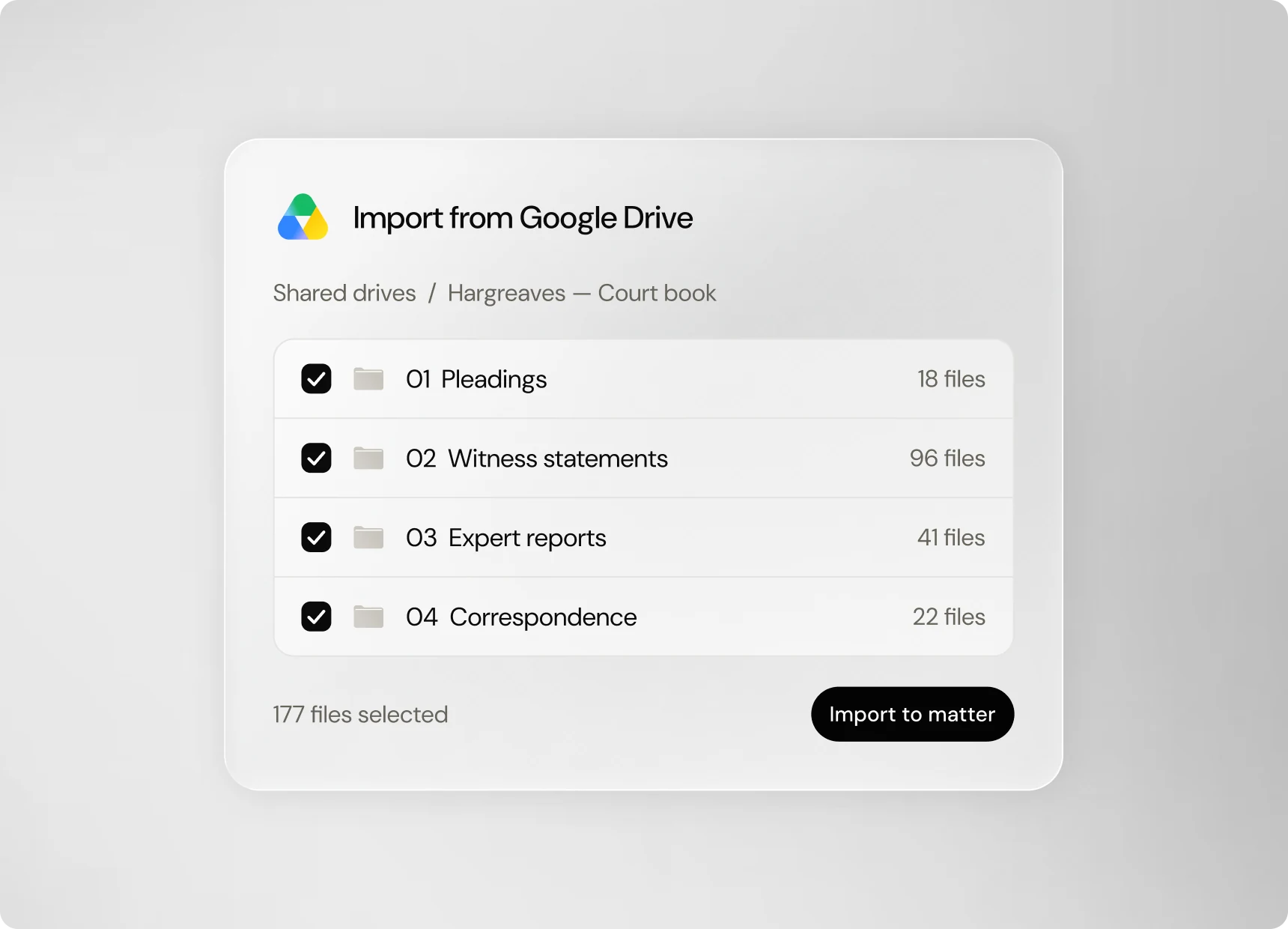
Juriton helps you bring files in from Drive or OneDrive and keep them in order in the matter.
How it works
From inbox or drive to matter, in four steps.
Connect
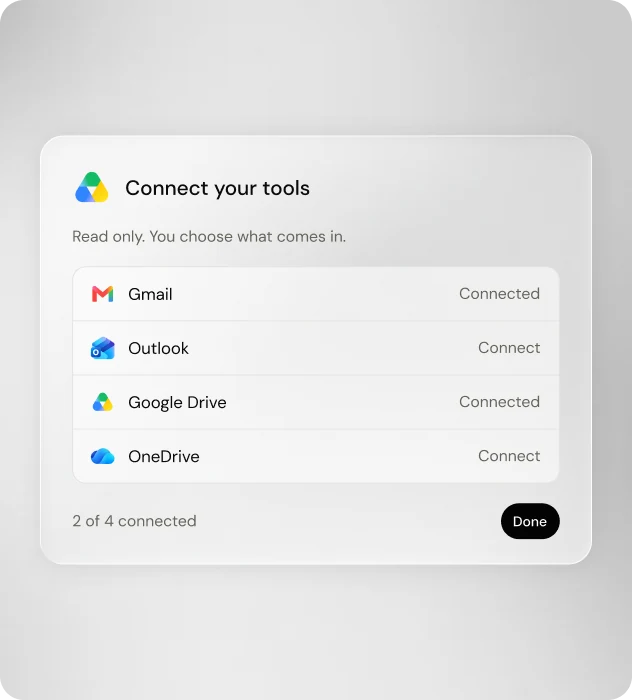
Connect the inbox or drive you want to use.
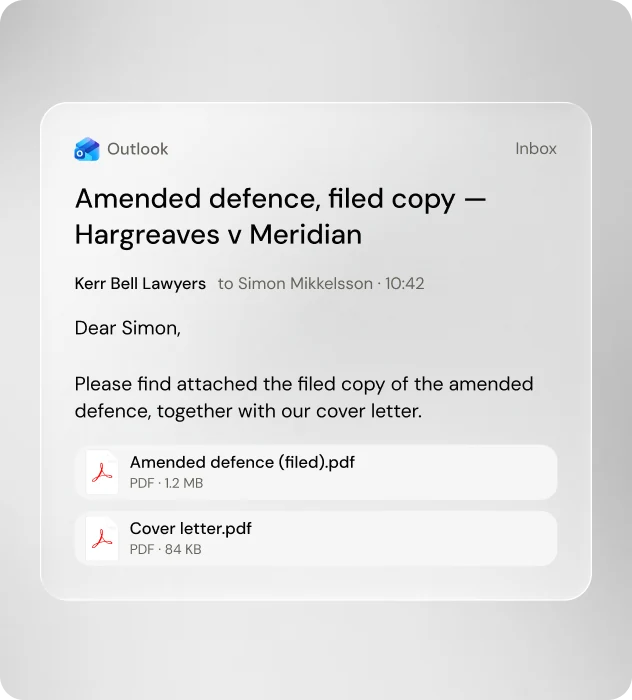
Read
Juriton helps you find new emails and files in your connected sources.
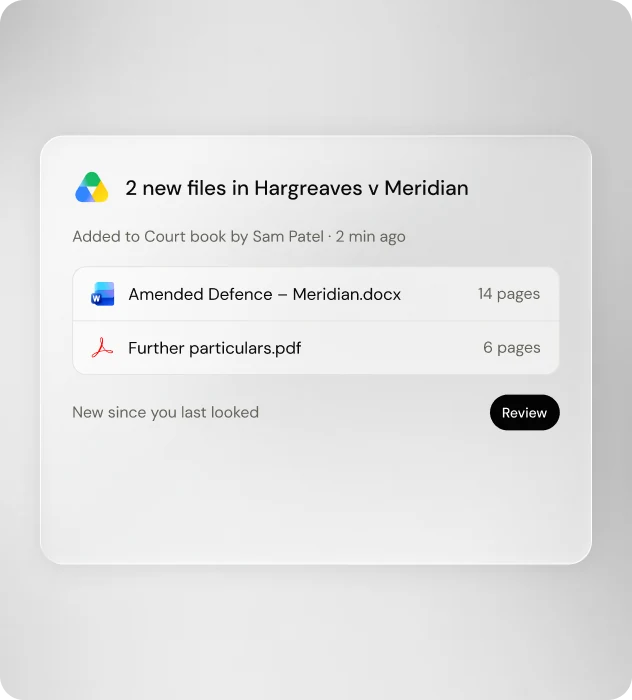
Sort
Juriton helps you see what’s new and which matter it belongs to.
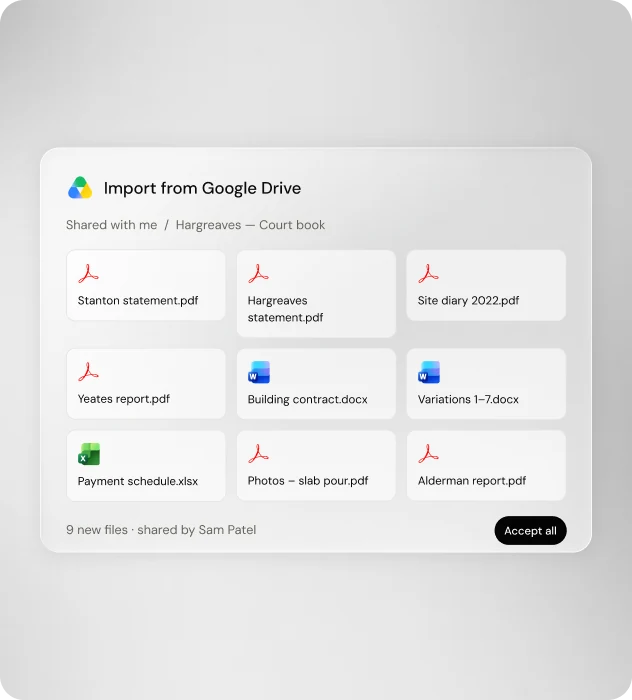
Accept
Choose what to add to the matter.
What connects

Google Drive
Bring files from Google Drive straight into the matter.
Read only. You choose what comes in.

OneDrive
Bring files from OneDrive straight into the matter.
Read only. You choose what comes in.

Gmail
Pick the emails you want and file them with their attachments.
Read only. You choose what comes in.

Outlook
Pick emails from Outlook and file them to the right matter.
Read only. You choose what comes in.
Strong advocacy begins with meticulous preparation.
Vanessa PlainCo-founder

FAQ
Which tools connect?
Can Juriton change or delete my files?
Does it read my whole inbox?
What happens when someone adds a file to the shared folder?
Is the folder structure kept?
Who can share files into a matter?
Where are imported documents stored?
How much does Juriton cost?
Live demo · 30 min
See how Juriton works for you
- 30 minutes. No client files required.
- Choose the work you want to see during the demo
- Get direct access to Juriton during the demo
 30 minutes. No client files required.